

Configuration
Before you can call the API, you need credentials. This page walks you through creating an API key in the admin panel and setting up Postman so you can send your first request in minutes.
Creating API Credentials
UnoPim allows you to generate API credentials that control access to the platform through integrations. The process includes setting up API keys, configuring permissions, assigning users, and generating secret keys.
Follow these steps in the admin panel:
- Navigate to the Integrations Tab:
- Go to Configuration -> Integrations in the UnoPim admin panel.
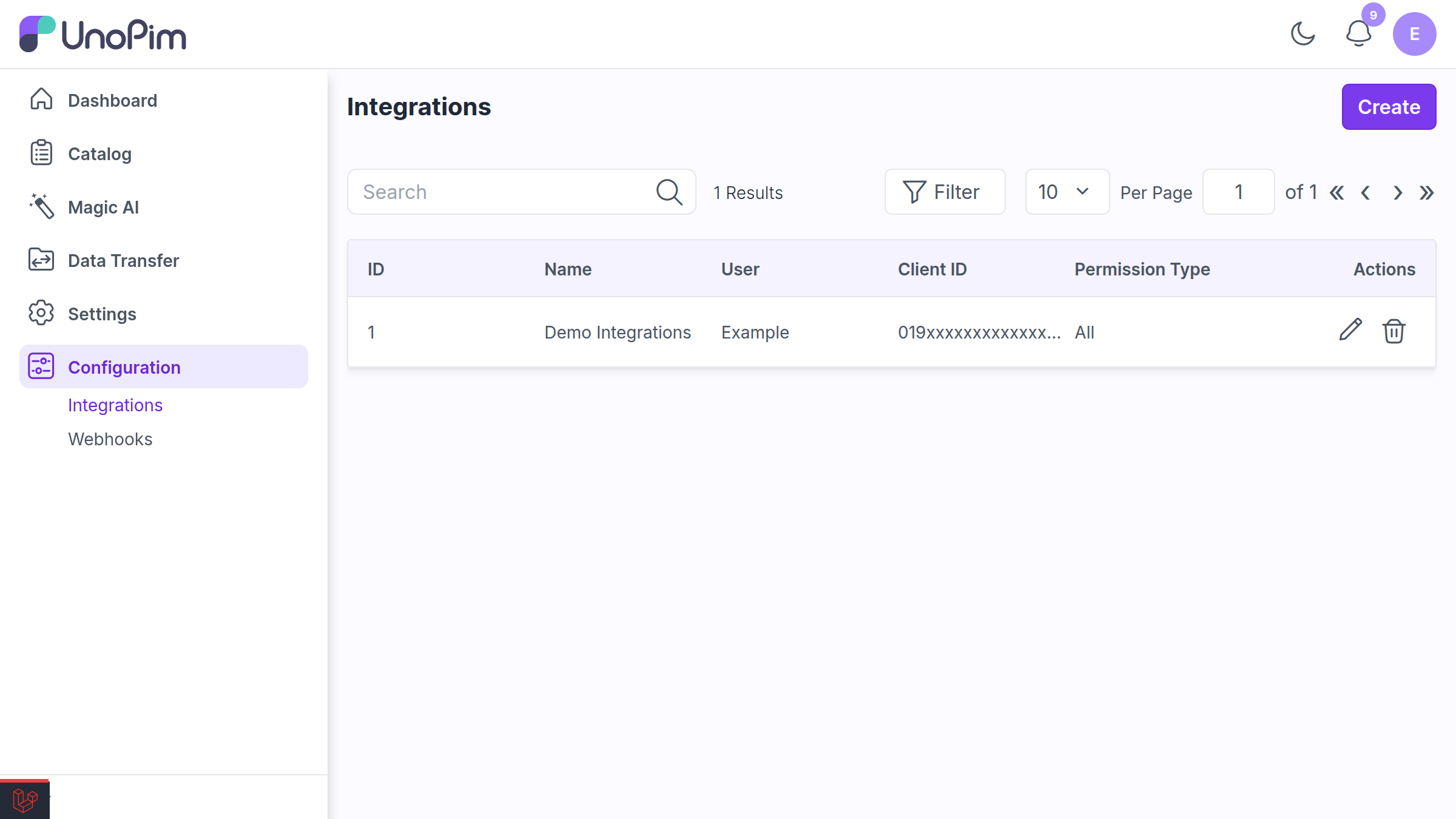
Click on Create:
- Under the API Keys section, click the Create button to start the process of creating a new API key.
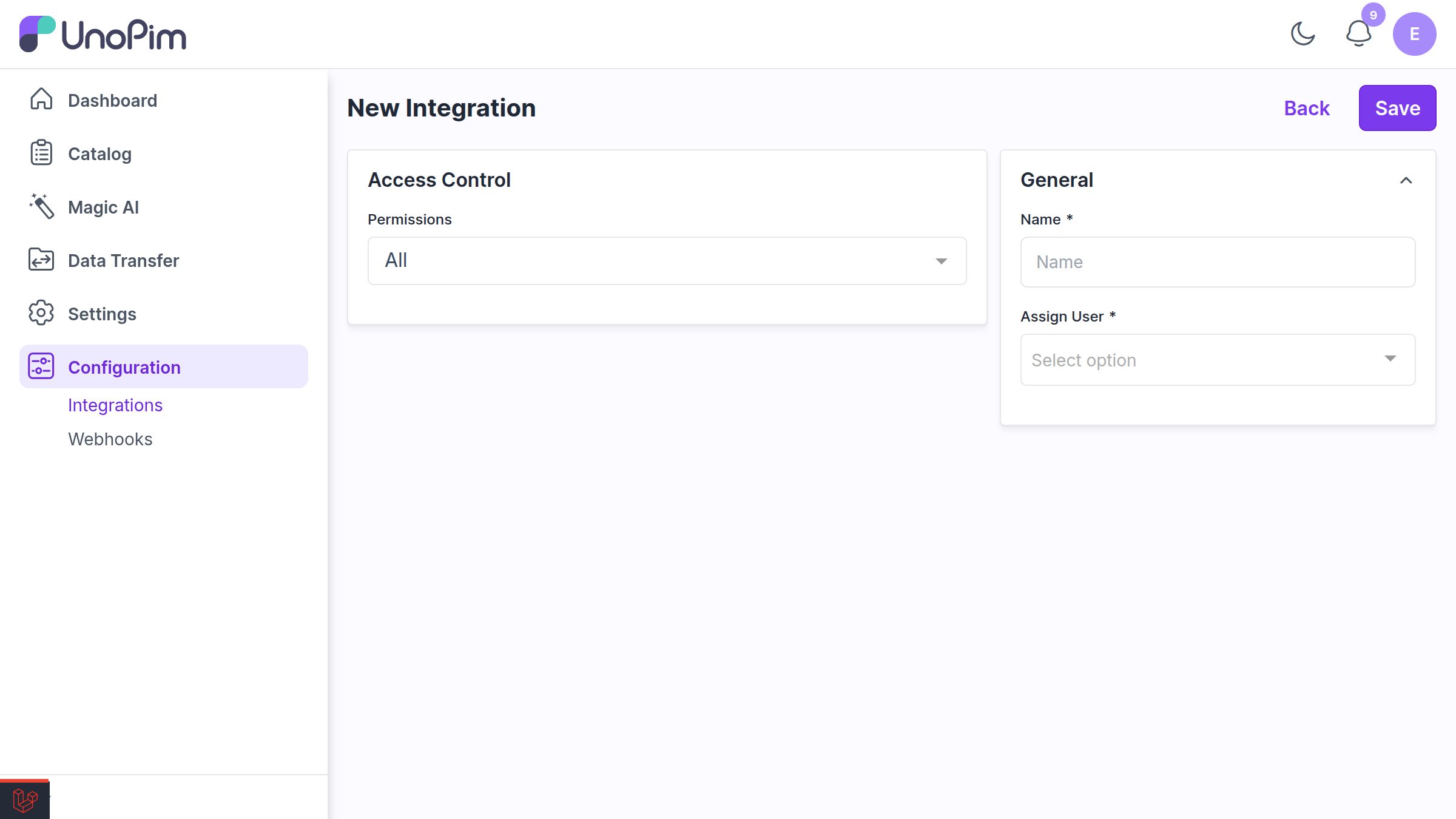
General Section:
- In the General Section, enter a unique Name for the API key.
No user to choose 3.0
In v2.x you picked an existing administrator to own the integration. Since v3.0, UnoPim provisions a dedicated robot user for each integration automatically — a least-privilege
type = 'api'account that cannot log into the admin panel. There is nothing to assign.Access Control:
Navigate to the Access Control Section, where you'll configure permissions for the API key.
Permissions Field: You'll see two options for setting permissions:
- All: Grants full access to the API key across all features.
- Custom: Allows you to define specific permissions.
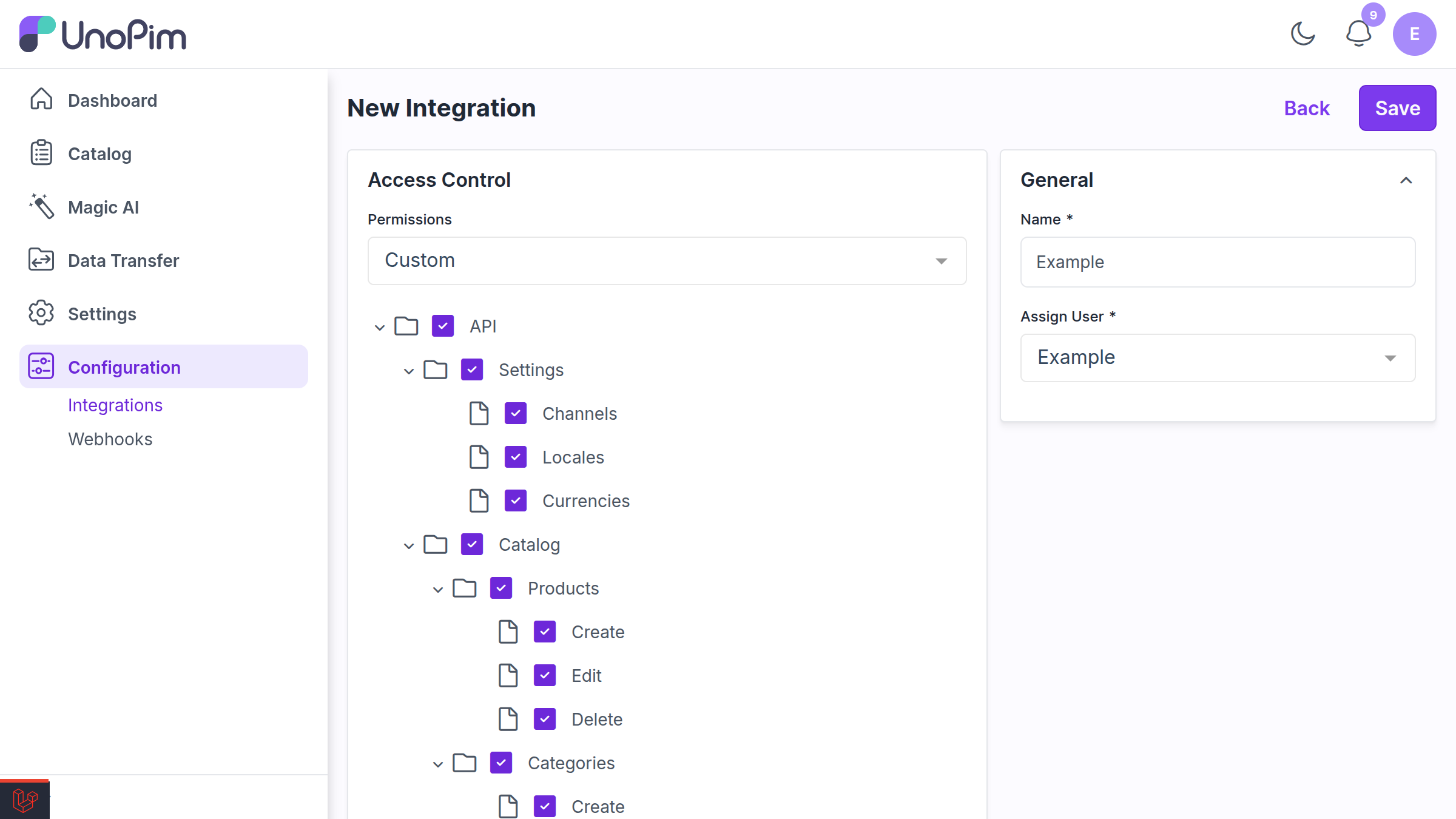
If you select Custom, the following options will appear:
- Settings Permissions: Use checkboxes to select which settings the API key can access.
- Catalog Permissions: Similarly, choose catalog-related permissions using checkboxes.
Save and Activate:
- After filling out the necessary details and selecting permissions, click Save to generate the API credentials.
Copy the password now 3.0
Saving reveals the robot user's username and password exactly once. The password is hashed immediately and cannot be shown again — copy both before leaving the screen. If you lose them, use Regenerate Password on the integration's edit screen; doing so revokes every token issued to that integration.
Generate Secret Key:
- Once saved, a Generate Secret Key button will appear.
- Click on this button to display the Client ID and Secret Key.
- These credentials will be used to access UnoPim's APIs.
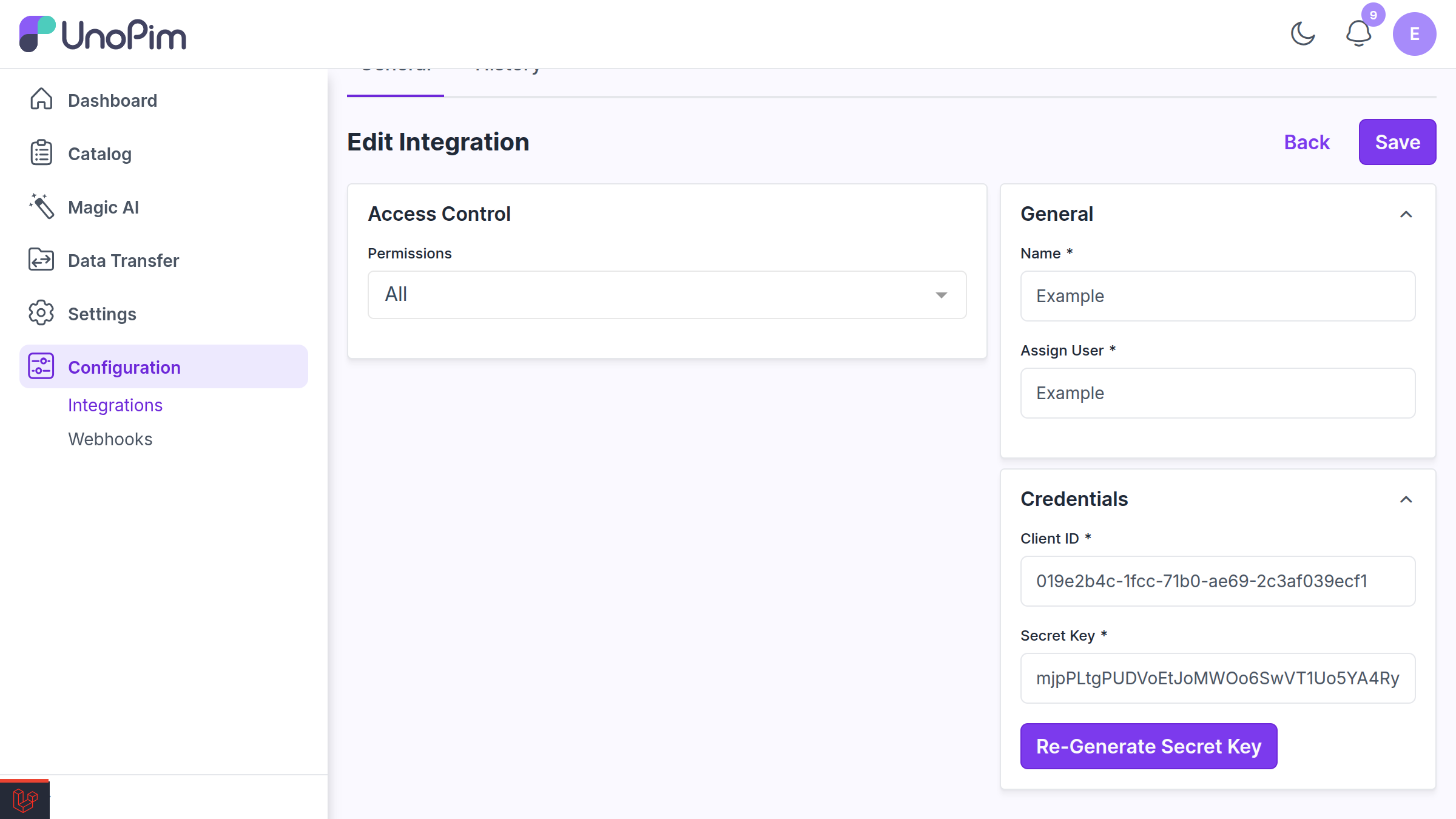
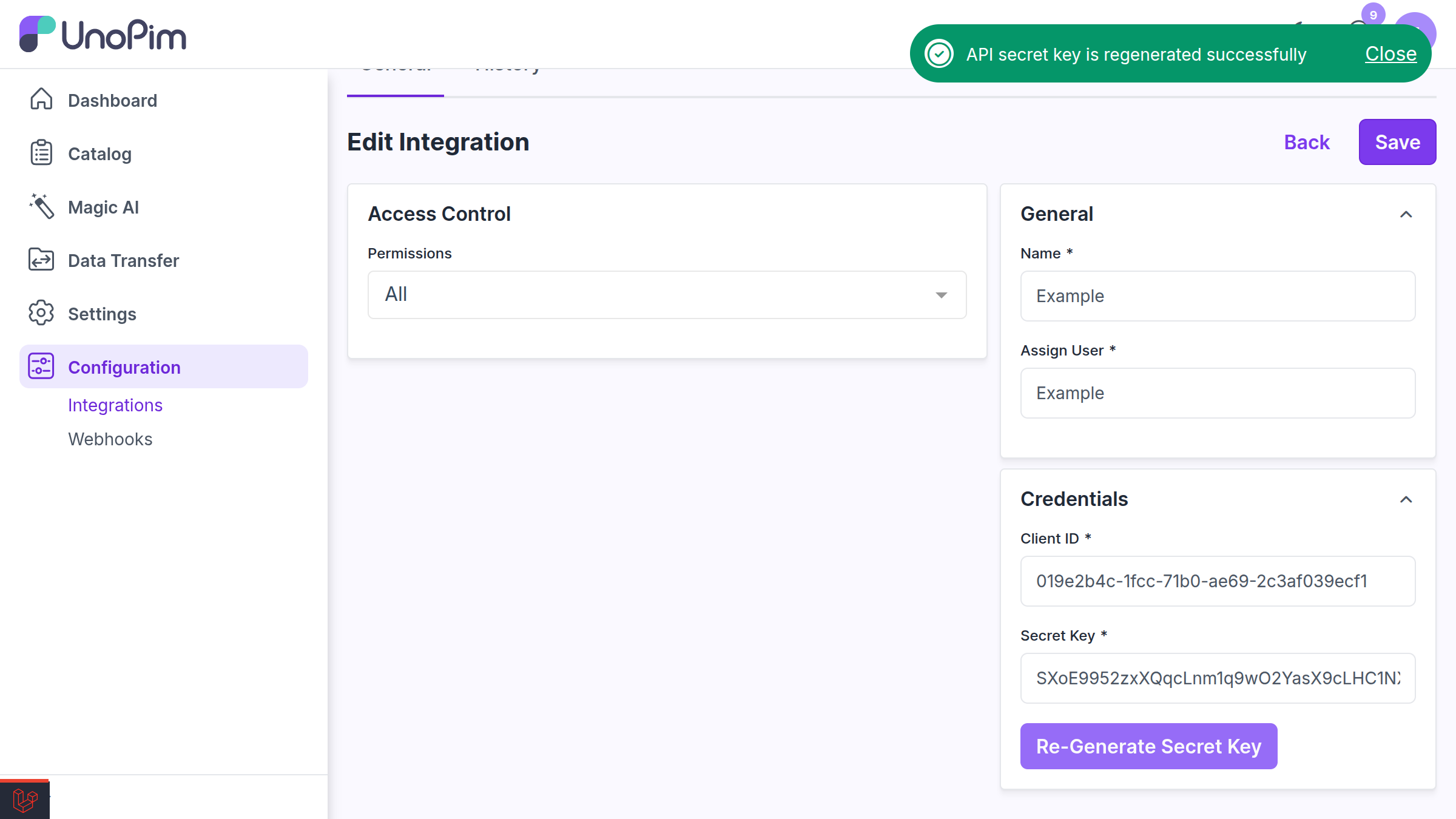
Re-Generate Secret Key
After generating the secret key, a Re-Generate Secret Key button will be available. Use this button to regenerate the secret key if needed. Like regenerating the password, it revokes existing tokens.
You now hold the four values every client needs: Client ID, Secret Key, username, and password. Continue to Authentication to exchange them for an access token.
Set up Postman
UnoPim provides a Postman collection and environment to simplify API testing and exploration. Here is how to get them running:
Download Postman:
- If you haven't already, download and install the Postman application from the official website.
Download the required files:
- Download the following files to your system:
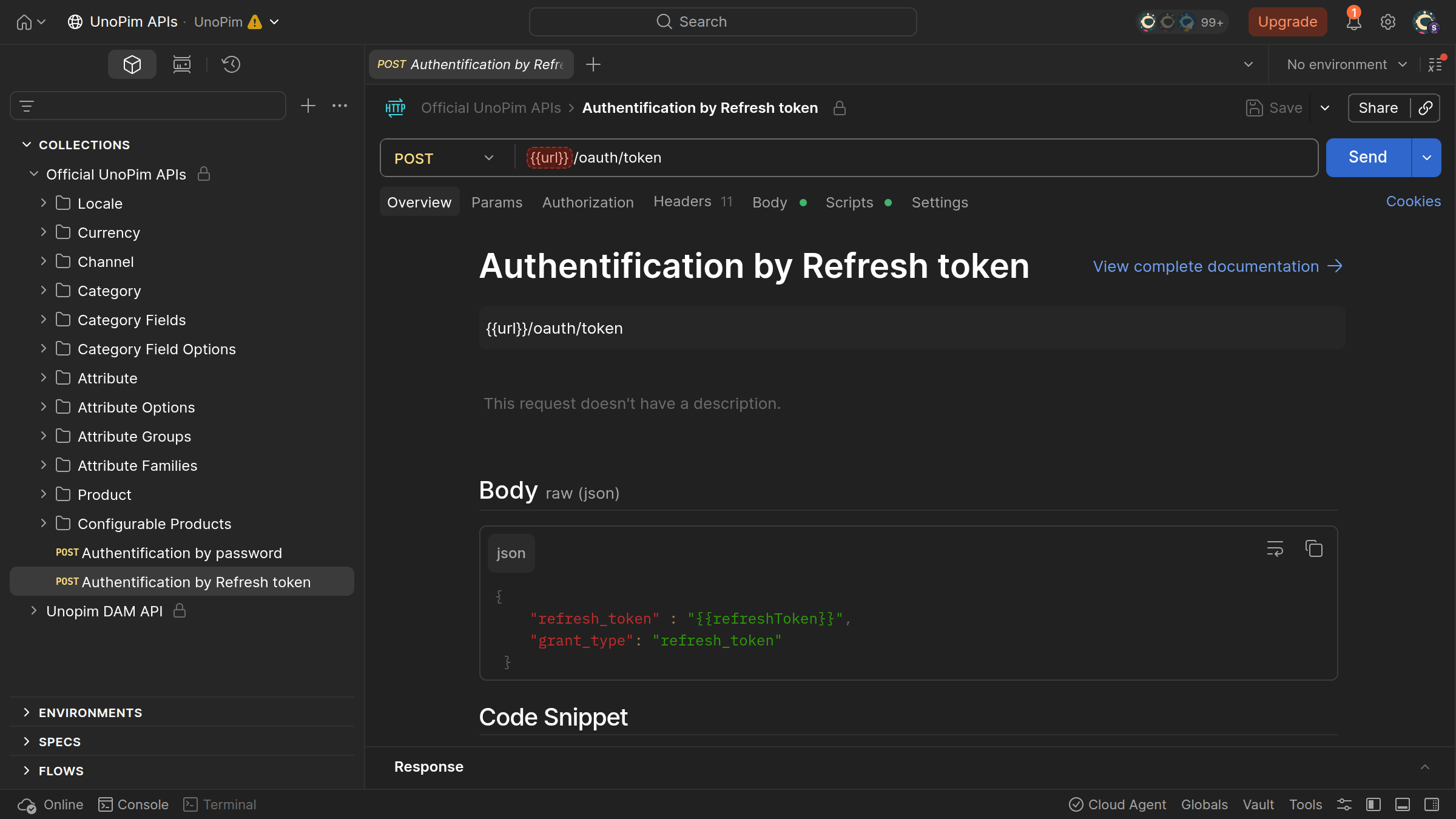
Import into Postman:
- Open Postman and use the Import button to add both the collection and environment files.
Select Environment:
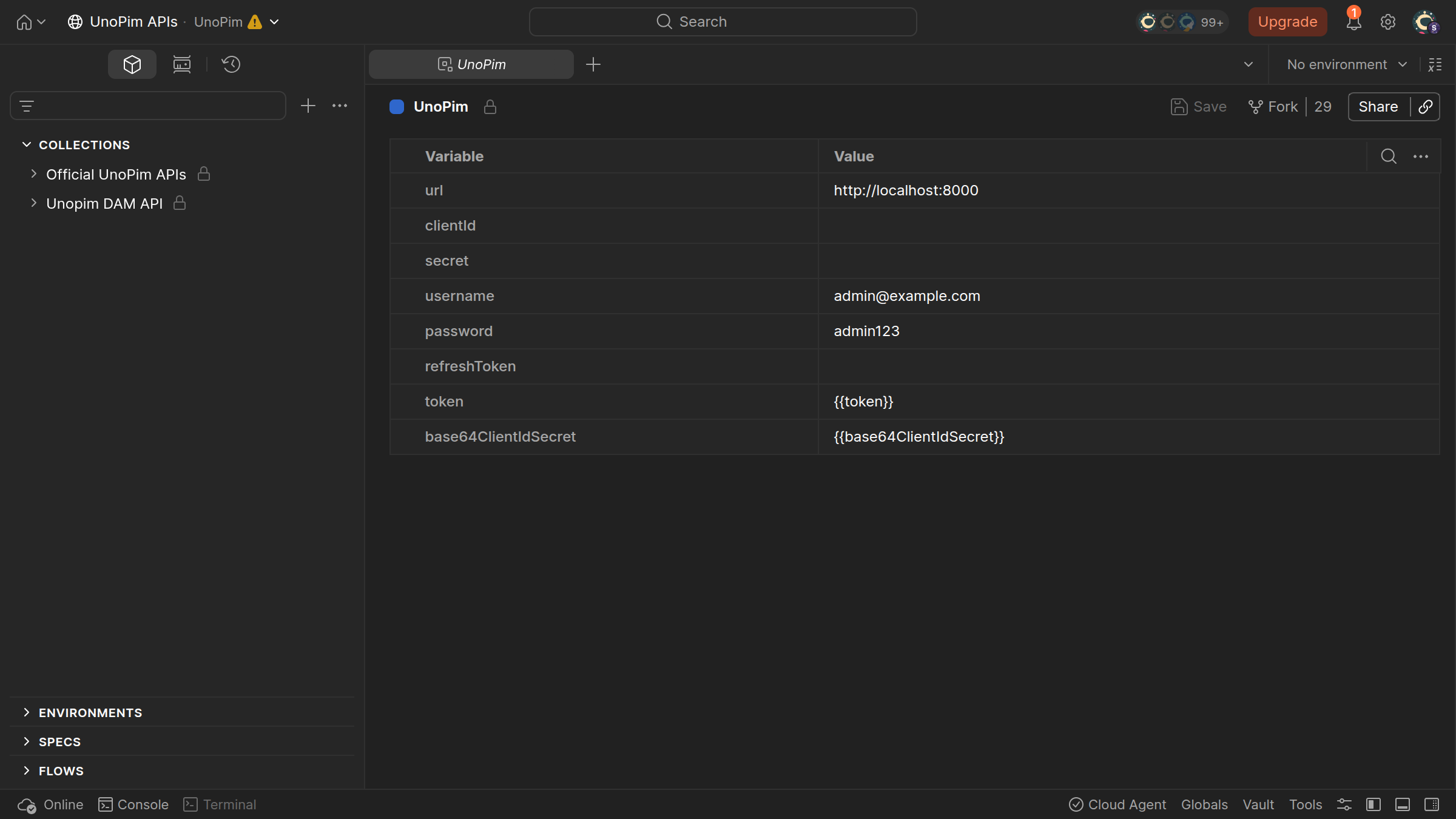
- Once the environment is imported, select the UnoPim API environment from the environment dropdown menu.
- Set the Environment variables, including the username, password, clientId, secret, and the URL of the application.
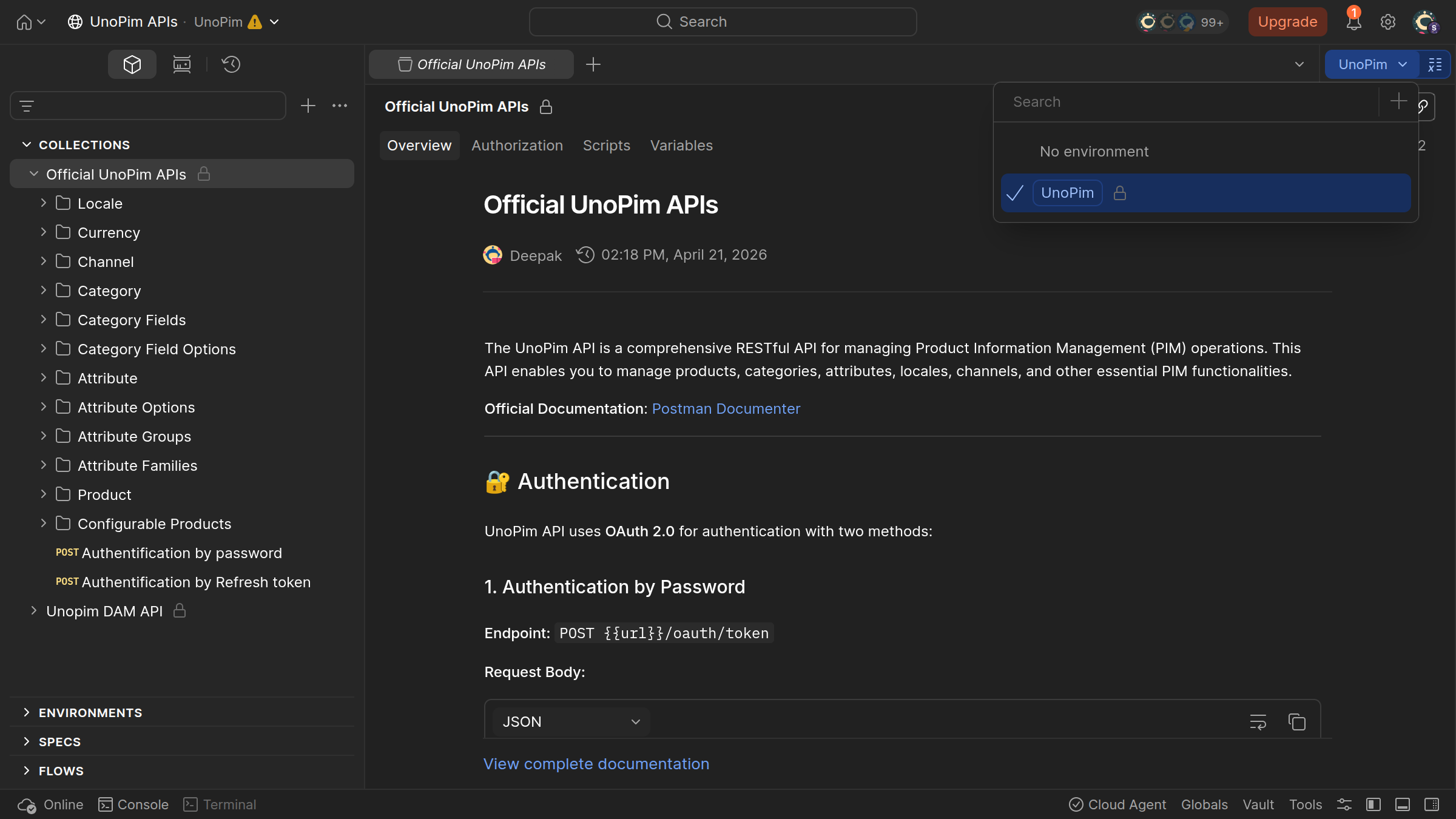
Send a Request:
- Now you can send your first request using the pre-configured Postman collection to interact with UnoPim APIs.